Changing accrual plans when an employee is changing pay period structures
Process to prevent accrual balance issues:
Follow the steps below when changing an employee from one Pay Period structure to another (e.g., Salary to Hourly/Hourly to Salary).
When making this change, the system administrator will need to update the Accrual Group of the employee first and then update the Pay Group to ensure that there is a clean cutoff of the accruals. Once the new Pay Group has been assigned, the administrator will then assign the proper Accrual Group.
Here are the steps:
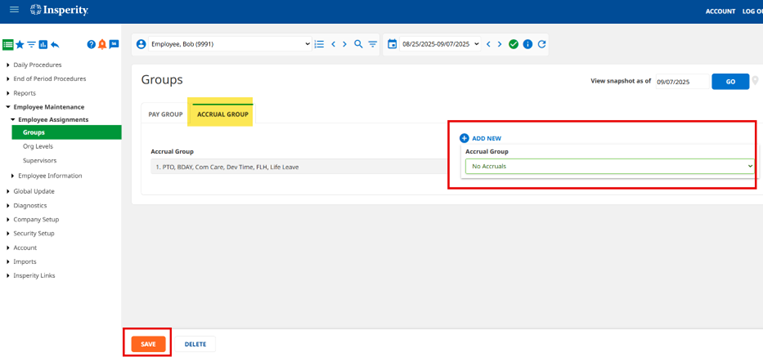
- Go to Employee Maintenance > Employee Assignments > Groups Tab > Accrual Group. Change employee Accrual Group to “No Accruals” and click SAVE (this stops the accruals from calculating).
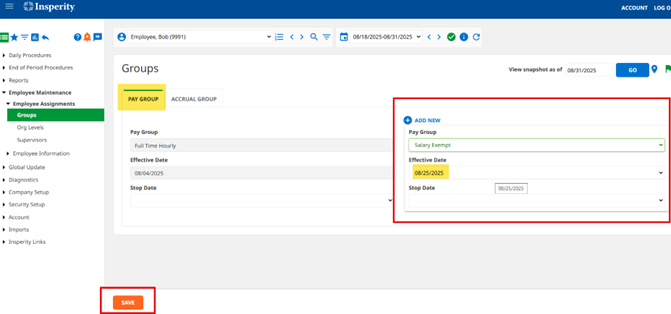
- Change employee Pay Group to “Salary Exempt” or “Hourly” (whichever is applicable). Reminder: The Effective Date is always the first day of a pay period. Click SAVE.
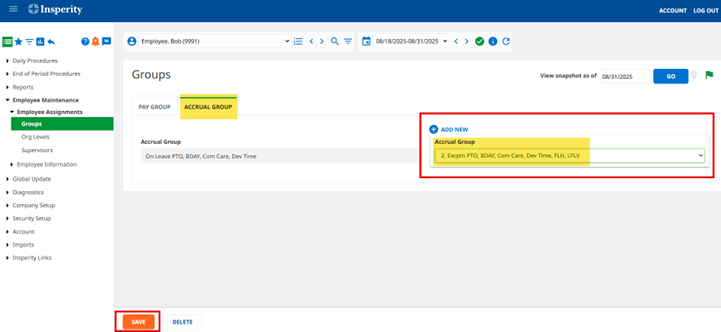
- Go back to the Accrual Group Assignment tab. Change employee Accrual Group to the new Accrual Group. Accruals will start calculating in that pay period. Click SAVE.