
This document outlines the steps for a system administrator to successfully submit payroll from Insperity Time and Attendance to Insperity Payroll.
Due to the pay current setup of payroll processing, in order to pay employees on the final Friday of the pay period, the paycheck must be processed prior to that Friday. Management may estimate and pay the employee based on the number of hours they are scheduled to work between the processing date and the end of the pay period/pay date. If the employee works different hours than their projected hours, or projections are not used, the employer makes the necessary adjustment, to add or subtract pay, in the next paycheck.
There are two setups for pay current clients: (1) projected hours; and (2) non-projected hours.
Non-projected hours – Used when employers pay employees only up to the time they have worked within the current period (even though the period has not ended yet).
Projected hours – Auto-populate scheduled regular hours on an employee’s timesheet based on their assigned schedule. This means that employers will pay up to the time they have worked within the current period plus their remaining scheduled hours.
Running reports in Insperity Time and Attendance
It is recommended that administrators run reports to validate timecards are correct before proceeding to the approval step. To access, navigate within Insperity Time and Attendance on the left navigation tree to Reports > Generate Reports.
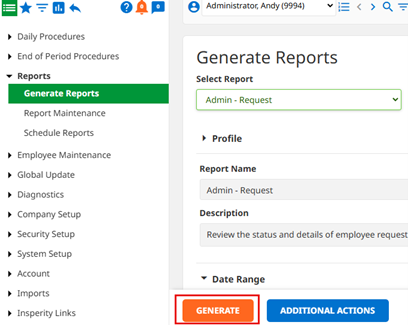
Common reports for timecard review include:
- Admin – Missing Punch
- Highlights missing punches for the pay period, preventing the timecard from being approved.
- Admin – Request
- Highlights outstanding/unanswered employee requests for the pay period, preventing the timecard from being approved.
- Payroll – Transfer
- Review all timecards prior to approval.
To access the requests page, follow the steps below:
- Open the Reports folder located within the main navigation menu.
- Click the Generate Reports page.

Approving timecards
The Approvals page is used to approve timesheets at the end of a pay period. It provides one place for reviewing timesheet hours for many or all employees at once.
- In the main navigation menu, open the End of Period Procedures folder.
- Click on the Approvals page. You will then be prompted to LAUNCH APPROVALS on the bottom left of the screen.
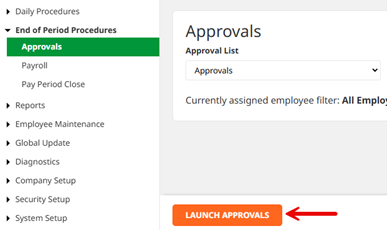
- Ensure all employees have checkmarks in the checkboxes by all employee names. You can use the Filter List dropdown at the top to get the list of only unapproved employees. You may also sort the screen by Supervisor or Pay Group.
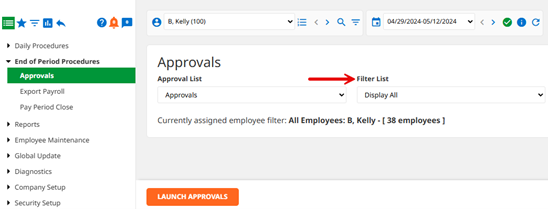
- Note that all outstanding time-off requests for the current period must be acted upon, and all missing punches must be corrected prior to approving time and exporting payroll.
Exporting data for Insperity Time and Attendance
- In the main navigation menu under End of Period Procedures, select Export Payroll.
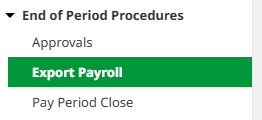
- Insperity Time and Attendance will now auto-populate payrolls that have been created in Insperity Payroll.
- If a client ID is not active in Insperity Payroll, no payroll export will exist in Time and Attendance.
- If there are multiple client IDs, each will appear separately. Locate the payroll to export based on company ID and date.
- If your data has previously been transmitted to payroll, the button will display Re-Start.
- Click on the payroll’s Start button located on the far right of the row within the Action column.
- A progress bar will show the current step in real time.
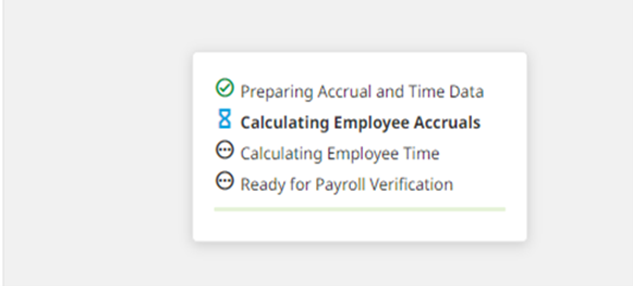
- Warnings and errors may appear at this time. Errors must be fixed prior to a successful payroll export by following the steps on screen. Once the errors are fixed, repeat steps four through five to transmit the corrected file.
- Repeat steps four through five for any additional company IDs.
Completing the payroll submission in Insperity Payroll
- From the Insperity Premier™ platform, navigate to Company > Payroll.
- Find the correct client ID and pay date, and click on its corresponding Action dropdown.
- Select the Verify Payroll option.
- Review and correct warnings and errors.
- Click Submit Payroll.
- Repeat steps two through five for any additional client IDs.
- Unapprove all timecards to ensure employees can continue to log hours worked through the end of the pay period.
- Once all time is logged through the end of the pay period, complete the approval process and proceed to “Ending the pay period.”
Ending the pay period
The final step that an administrator must perform in Insperity Time and Attendance at the end of every pay period is to formally end the pay period. This action should not be taken until all of the timesheet approvals have been completed, payroll has been processed, and checks have been cut. Ending the pay period commits all of the timesheet and accrual information into history and advances the dates of the current pay period forward. To end the current pay period(s) in the Insperity Time and Attendance system, follow the steps below:
- In the main navigation menu in Insperity Time and Attendance, open the End of Period Procedures folder.
- Click on the Pay Period Close page.
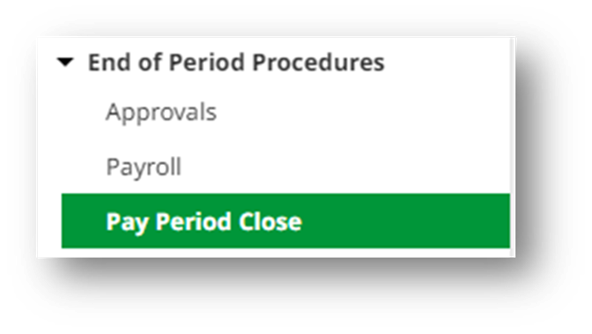
- Select the appropriate pay period to end using the Select Pay Period dropdown. Verify that the Period to End and Next Period fields are accurate. Payroll History and Accruals History dropdowns should be set to “Yes.”
- Click the END PERIOD button.

If any missing punches or outstanding requests exist, an error will appear and the system will not allow the administrator to end the pay period. These errors must be resolved prior to completing the end-of-period processing.
Confirmation will appear if the pay period end was successful.