
Points can be created in Insperity® Time and Attendance to track employee infractions for attendance-related items. The setup requires accurate schedule assignments as well as alerts. If the setup only impacts a subset of employees, a new pay group can be created with the requested setup.
Attendance page
The attendance page is where you can review and manage employee attendance exceptions, including the corresponding linked points.
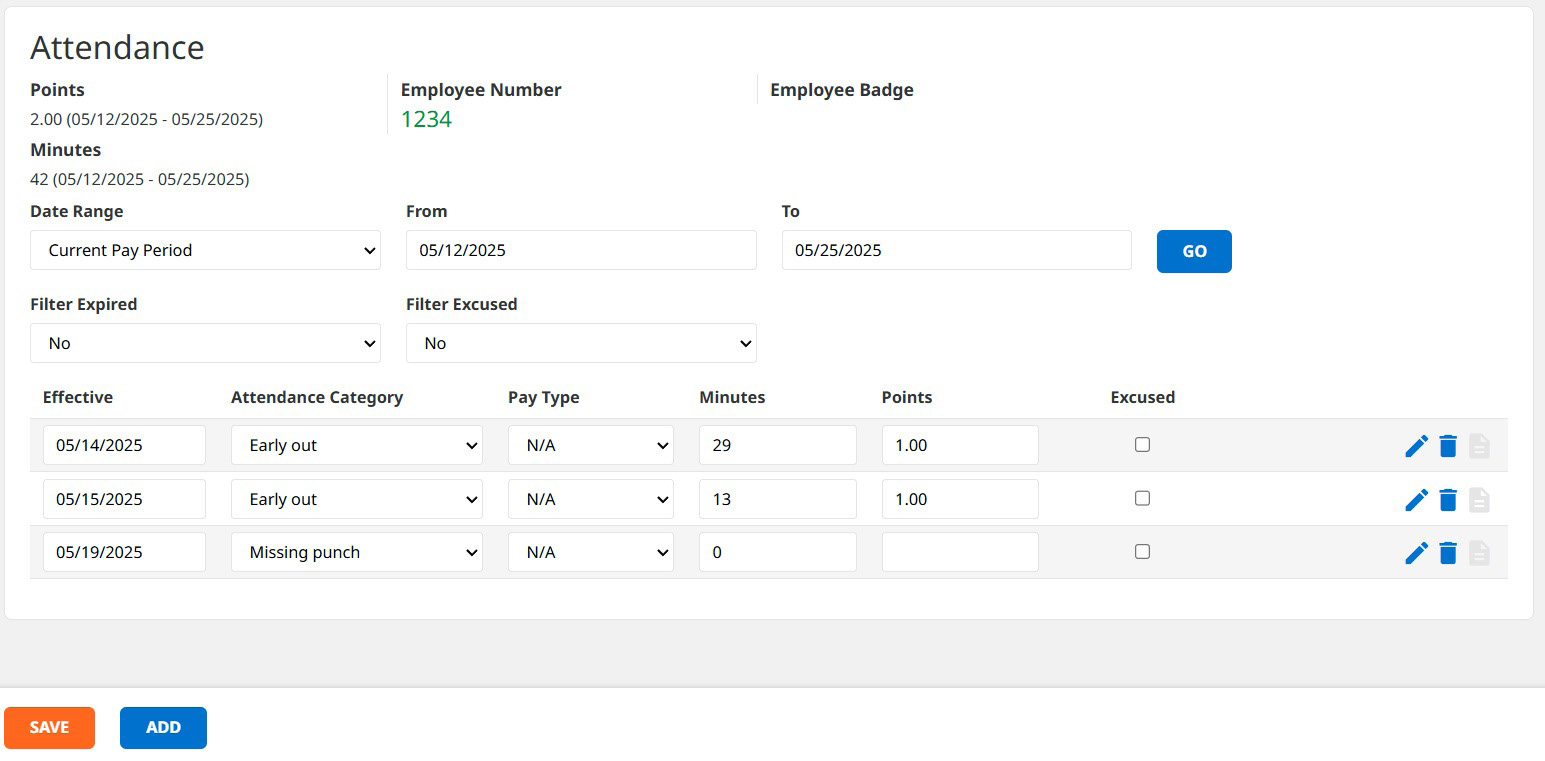
The total number of points is displayed based on the specified date range. You can filter to exclude expired and/or excused attendance records. You can also manage manual attendance records and link points to them here.
Reports
There are reports that can be run to capture points. Access to run, view and/or print reports is based on role access.
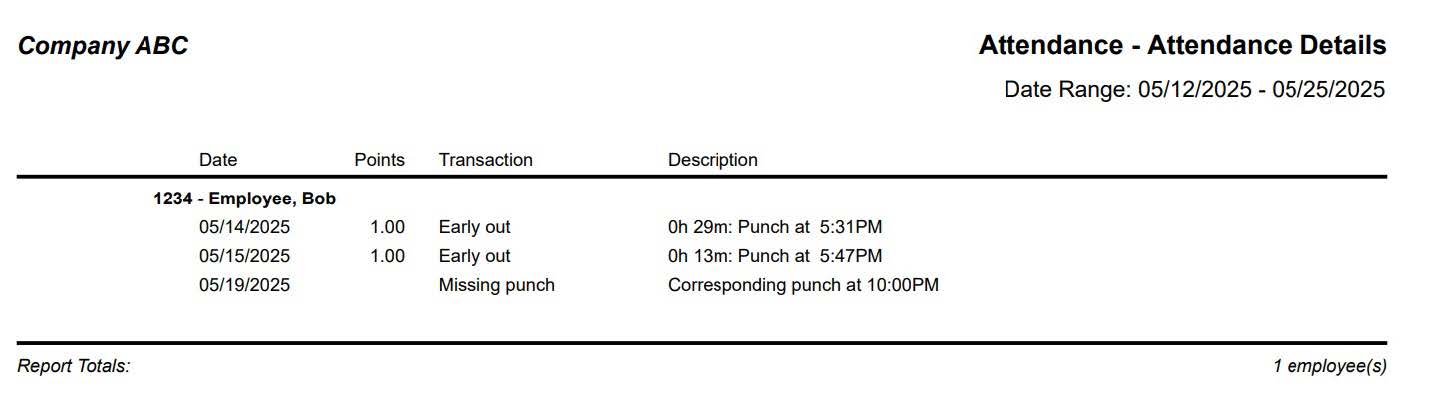
Attendance – Attendance Details report: This will display all attendance exceptions for the selected date range, including linked points.
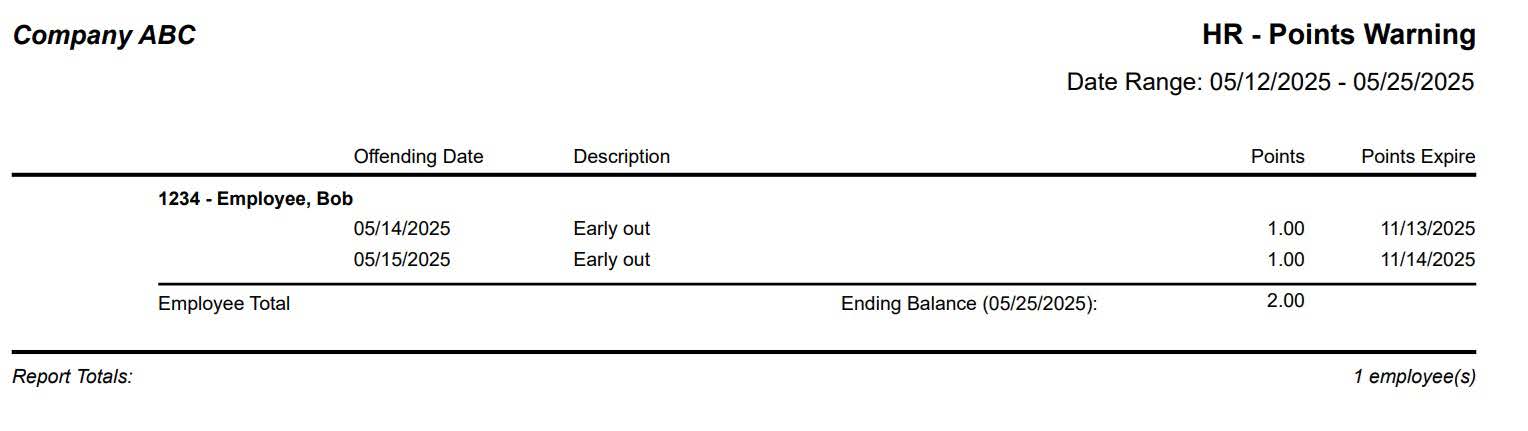
HR – Points Warning report: This will display all the points infractions for the selected date range and include the points’ expiration dates and total points per employee. This report can be set to exclude expired points.
Points configuration options
Automatic point awards can be linked to the following attendance items.
- Early in, late in, early out or late out
- Staggered amounts can be set up. For example:
- 0.5 points if over five minutes late
- 1 point if over 10 minutes late
- Staggered amounts can be set up. For example:
- Lunch too short or lunch too long
- Staggered amounts can be set up. For example:
- 0.5 points if longer than a 35-minute lunch
- 1 point if over a 45-minute lunch
- 0.5 points if shorter than a 30-minute lunch
- 1 point if shorter than a 20-minute lunch
- Staggered amounts can be set up. For example:
- Break too long
- Staggered amounts can be set up. For example:
- 0.5 points if longer than a 20-minute break
- 1 point if over a 25-minute break
- Staggered amounts can be set up. For example:
- Absent
- Employee is scheduled to work and there is no worked time or time-off record present
- Missing punch
- No call/no show
- Employee has more than the configured number of consecutive absences
The following conditions can also be defined for the points automation:
- A daily points limit
- Points expiration
- Rolling number of days since points were awarded
- Specific calendar date reset
- Warning ranges
- Define multiple ranges in which an alert or email is sent to the supervisor. For example:
- Point accumulation between 4 and 6.9 is a level-one warning
- Point accumulation between 7 and 9.9 is a level-two warning
- Point accumulation over 10 is a level-three warning
- Define multiple ranges in which an alert or email is sent to the supervisor. For example:
Up to five additional user-defined attendance categories can be created to be manually added by a supervisor/administrator.
Roles and access
Access to view and create attendance records and linked points can be configured for your business. Most commonly, both system administrators and supervisors will have this access. During the setup of the attendance and points system, your Insperity® Time and Attendance implementation specialist will configure permissions according to your business needs.