
The Hours page in Time and Attendance is used to track an employee’s hours in blocks of time. This is where hours recorded as time off, Salary or Holiday, and worked hours for non-exempt employees will be displayed. Access is dependent on company setup and may be restricted for employees to “view only.”
Navigating to the Hours page
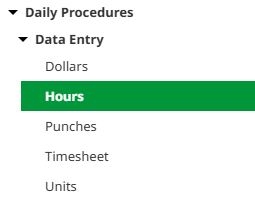
- In the left navigation tree within Time and Attendance, select Daily Procedures.
- Open the Data Entry subfolder.
- Click on the Hours page.
Reviewing the Hours page
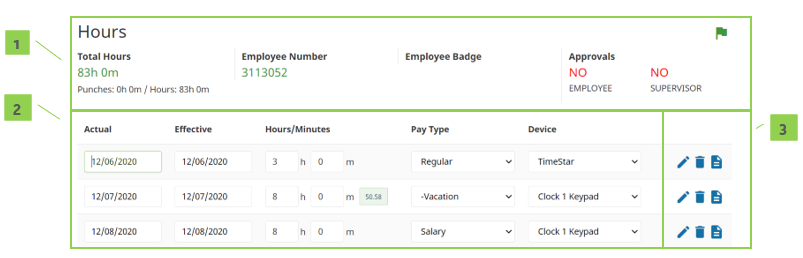
- Summary Bar
- Total Hours – Total recorded time from the Punches and Hours pages
- Employee Number – Assigned employee number
- Employee Badge – Employee’s badge number identification if hardware clocks are in use
- Approvals – Status of employee and supervisor approvals
- Hours – All recorded hours for the employee. For definitions of each field, refer to the “Hours detail definitions” section.
- Unnamed Column – Buttons that allow additional interaction with the hours. They include:
- Edit (pencil icon) – Edit details of the hours
- Delete (trash can icon) – Delete the hours
- Audit Log (paper icon) – View details of the audit log associated with the hours
Hour detail definitions
Below is an alphabetical list of the fields that may be seen on the main Hours page or within the Detail View pop-up window when editing or adding an hours record. Access to these fields is dependent on company setup.
- Actual – Actual date the hours were earned.
- Effective Date – Actual date the hours were earned.
- Comment – Comment (to be) associated with the hours record.
- Device – Device where the hours record originated.
- Device Number – Device where the hours record originated.
- Hours/Minutes – Number of hours and minutes attributed to the record.
- Organization Level drop downs – Organization level items assigned to the hours record.
- Pay Type – Pay Type applied to the hours record.
- Shift – Shift code applied to the hours record, if applicable.
- Source Code – Defaults to “TimeStar.”
Editing an hours Record
With the appropriate security, any item that displays on the main portion of the Hours page can be edited simply by selecting and overwriting the data within the appropriate field. When finished, click Save.
Additional hours information can be edited using the following steps:
- Click the Edit button to edit the hours to be changed. The Detail View pop-up window opens.
- Adjust the field(s) as needed. At minimum, the Actual Date, Pay Type, and Hours/Minutes fields must be completed. For definitions of each field, refer to the “Hours detail definitions” section.
- Click Save.
Deleting an hours record
An hours record can be deleted, provided it is not an auto-generated record from the system (e.g., Salary or Holiday). These records should instead be zeroed out. Use the following steps to delete all other records:
- Click the Delete button to the right of the hours to be removed. A warning message appears to confirm the deletion of the hours.
- Click OK.
Adding an hours record
To add a single hours record, follow the steps below:
- Click the Add button at the bottom left of the page. The Detail View pop-up window opens.
- At minimum, the Actual Date, Pay Type, and Hours/Minutes fields must be completed. For definitions of each field, refer to the “Hours detail definitions” section.
- Click Save.
Adding many hours records
To add many hours records at once, it is best to use the Timesheet option.
- In the left navigation tree, select Daily Procedures.
- Open the Data Entry subfolder.
- Click on the Timesheet page. A new window/tab opens in the browser containing the Timesheet.
- Use the dropdown on the second row of the Timesheet to select the worksheet to use. These are created and customized for each install but will typically have a separate timesheet for hours.
- Find the date of the hours record and fill in the applicable fields. For definitions of each field, refer to the “Hours detail definitions” section.
- To add an additional record to the same day, use the Plus-Add Hours button located on the hours block.
- For more detailed information about using the Timesheet, see Tracking time using the Timesheet.
- Click Save.