
- When the clock is at an idle screen (time and date), enter “99999” and press the checkmark button.
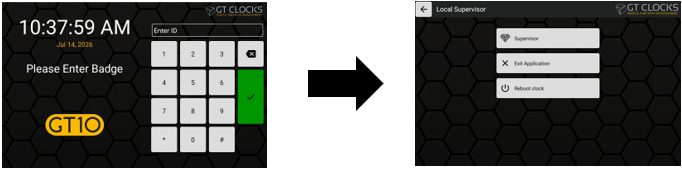
- Next select Exit Application from the options menu.
- During the application loading screen, select the Admin cog/wrench icon.
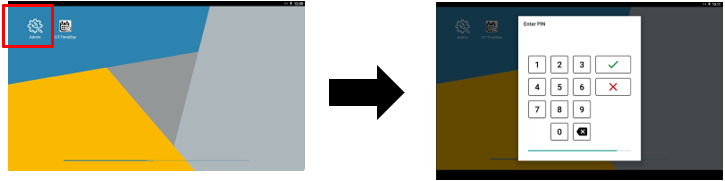
- When prompted, enter the default PIN number “1905” to access the Admin menu.
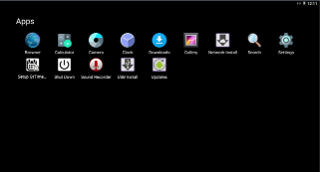
- Select the Settings cog wheel icon.
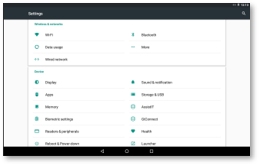
- From the Settings menu screen, select the Wired Network option under the Wireless & Networks section.
- The clock will display the current network status and related information. Select the Configure IP Settings option. This allows you to adjust to a static IP address and to begin to enter all relevant network IP addresses applicable to the local network.
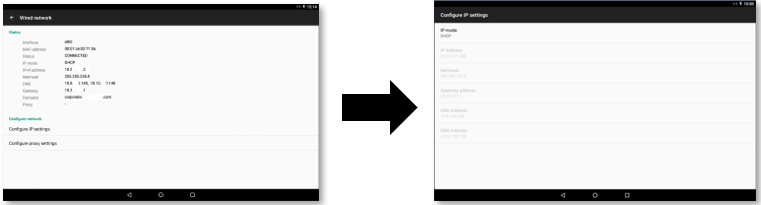
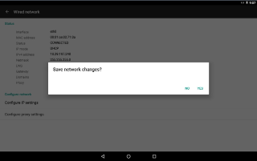
- To finish, press the back arrow at the bottom of the screen. A Save network changes? prompt displays. Select Yes.
- To exit out of the Admin menu, press the center navigation circle or the back navigation button at the bottom of the menu. The clock will begin to load into the clock application and go back to the idle screen.