- Enter the badge number assigned into the keypad or swipe the badge card.
- Select the Punch button. See the below function descriptions.
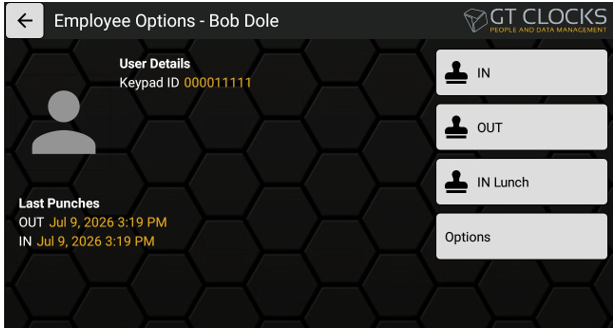
- Clock IN – Standard In punch (IND)
- Clock OUT – Standard Out punch (OUT)
- Clock IN Lunch – Back from Lunch (INL)
- Options – Moves to the Options screen.
- If you select the Options button, the following displays:
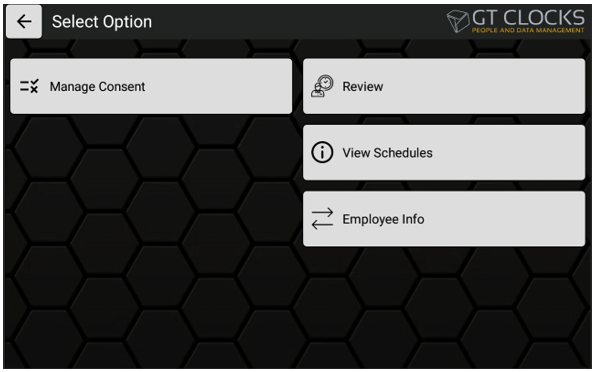
- Manage Consent – if biometrics are being used, this allows the employee to manage current consent acceptance and renewal.
- Renewal Punches – allows employee to review their punches created at this device or a one-week period.
- View Schedules – if schedules are used within Insperity Time, this displays the next days of the assigned schedule.
- Employee Info – provides “Total Hours” that lists the employee’s total hours for the current pay period.
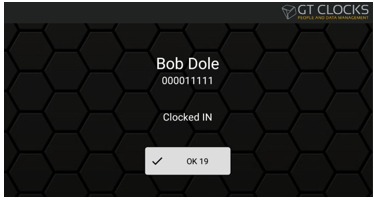
- If the punch was successful, a confirmation displays.