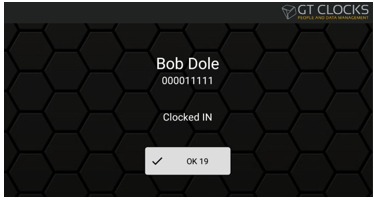
- Employees will first need individual badge numbers assigned via Insperity Time. While the clock is online these assigned numbers will be downloaded and made active within several hours.
- Connect the clock to network (ie: Ethernet cable or WiFi adapter) and then connect power to the clock via the 12vDC adapter. If Power Over Ethernet(PoE) is present the clock will begin powering.
- Once the clock completes its startup/boot procedure, you will see the idle date/time screen. The clock is now ready to record punches.
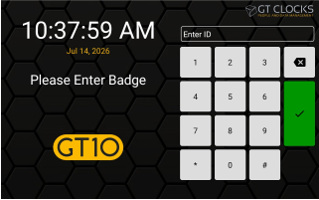
- From the idle screen the employee can swipe their badge or enter their number via the keypad. Pressing green checkmark button to enter.
- After identifying, the employee will be asked to verify themselves using the biometric scanner (if applicable). This step is skipped when there is no biometric scanner present.
- The employee will be presented with the punch selection screen. Example: IN button, OUT button, IN LUNCH button, etc.
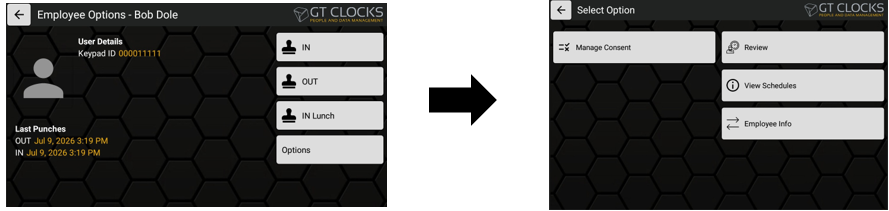
- Upon selecting a punch type the employee will see a punch confirmation screen. The clock will then return to the idle date/time screen.
NOTE: Depending on the clock configuration, some punch types will not be displayed.