
- When the clock is at an idle screen (time and date), enter “99999” and press the checkmark button.
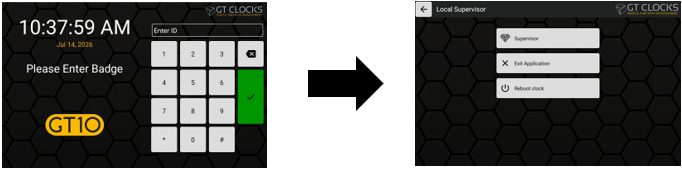
- Next select Exit Application from the options menu.
- During the application loading screen, select the Admin cog/wrench icon.
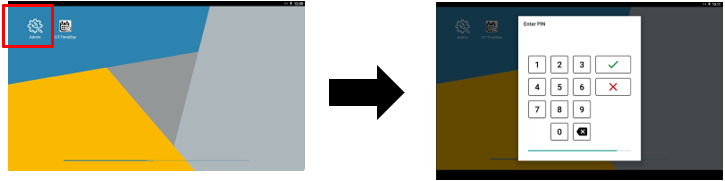
- When prompted, enter the default PIN number “1905” to access the Admin menu.
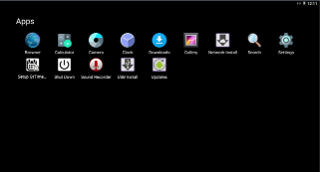
- Select the Settings cog wheel icon.
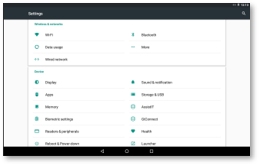
- From the Settings menu screen, select the WiFi option under the Wireless & Networks section.
- The clock will scan for available network signals. Select the desired network to open the login screen.
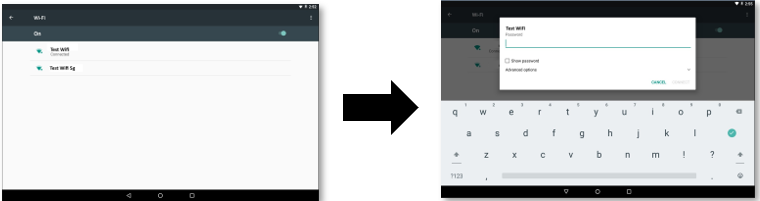
- Enter the wifi password and press Connect.
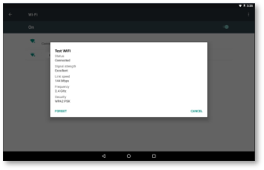
NOTE: Selecting an already connected wifi network will show the current settings for that network.
- To exit out of the Admin menu, press the center navigation circle or the back navigation button at the bottom of the menu. The clock will begin to load into the clock application and go back to the idle screen.